If you’re looking up how to unpair Apple Watch, chances are you’re either upgrading, passing it on to someone else, or trying to sort out a glitch. I’ve gone through this a bunch of times myself—with my own watches and helping friends—and it’s honestly not as tricky as it might seem at first. The process is pretty safe, and Apple makes sure your stuff is backed up along the way.
This guide is based on what I’ve learned from doing it over the years. I’ll take you through it step by step, so you can get it right the first time without any stress.
Why People Usually Unpair Apple Watch
I’ve seen a few common situations come up:
You’re grabbing a newer model and want a clean slate.
You’re selling or gifting the old one.
Connection issues are acting up.
Or you’re moving to a different iPhone.
No matter why, doing it the right way matters. It wipes the watch cleanly, pulls it from your Apple ID, and disables Activation Lock so the next person can set it up without hassle.
More Blogs Now : Seekde Revolutionizing Digital Discovery in 2025
What Actually Happens When You Unpair
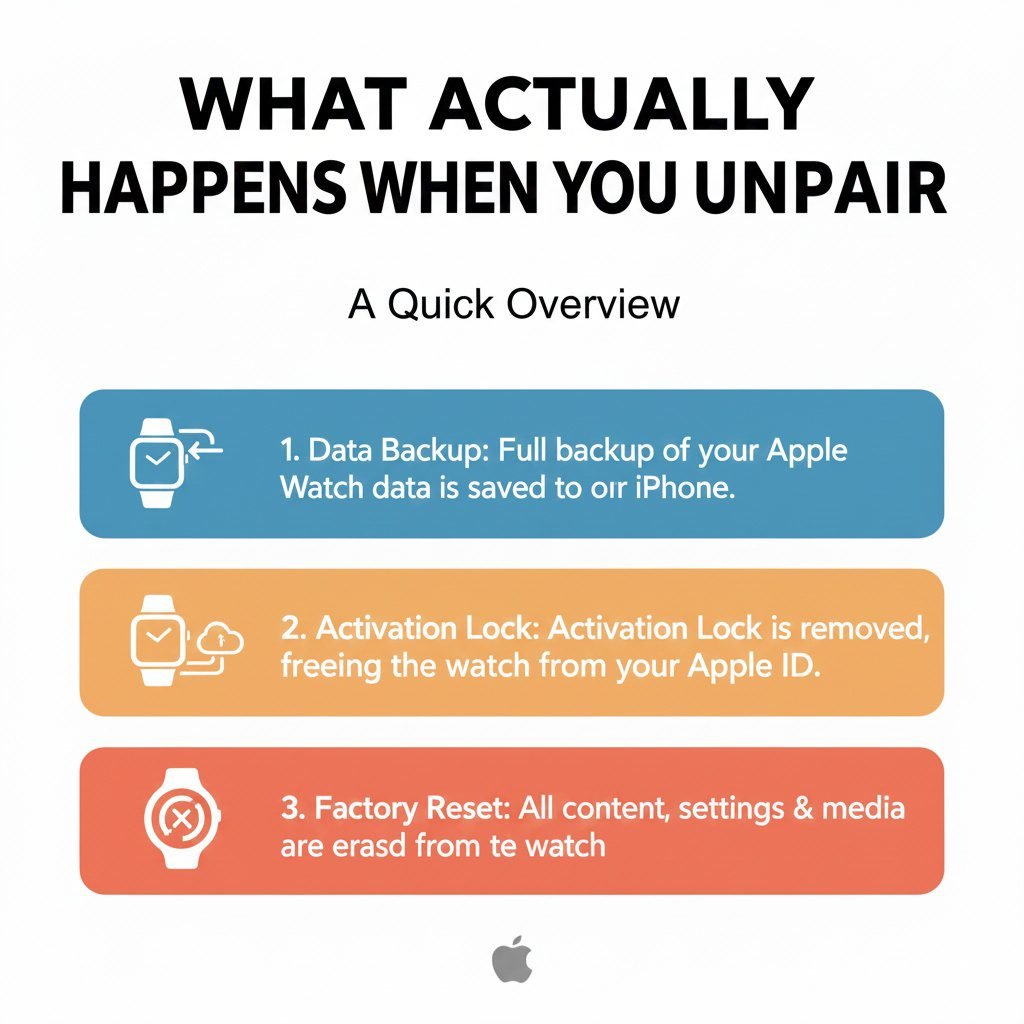
Let me clear this up first, because it’s what worried me the most early on.
Your iPhone automatically makes a backup of everything—apps, settings, even your health and fitness data.
Then the watch gets erased and goes back to factory fresh.
Activation Lock turns off once you enter your password.
If it’s a cellular model, you get to decide about the plan.
From experience, that backup has saved me every time I’ve paired again later. Nothing important gets lost.
A Bit of Prep Before You Start
A quick heads-up on prep—I’ve skipped these once or twice and regretted it.
Keep your watch and iPhone near each other so they stay connected.
Charge both to at least half battery; it can take a few minutes.
If you have cards set up in Apple Wallet on the watch, remove them first.
It’s smart to update everything if you can.
And if you’re selling a cellular one, think ahead about the plan.
The Best Way Unpair Apple Watch Through Your iPhone
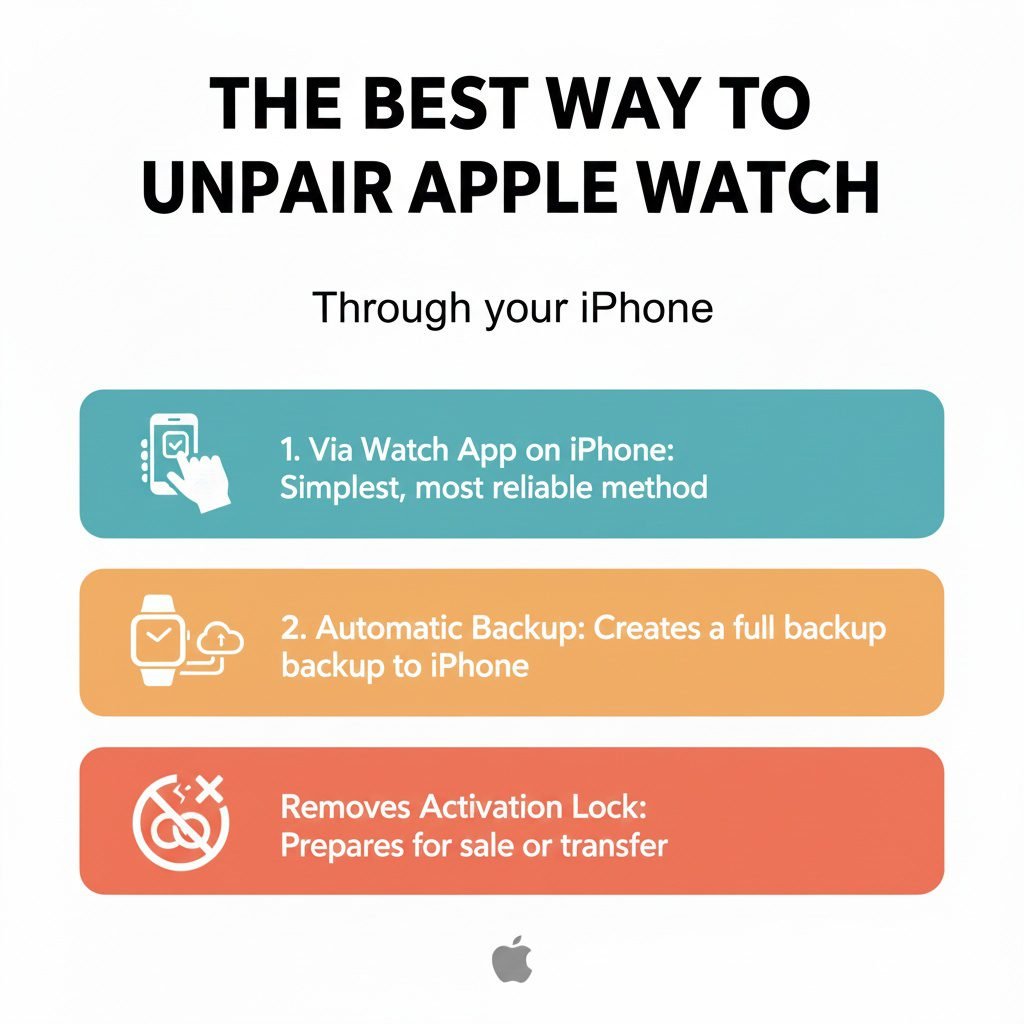
This is the method I always recommend—it’s smooth and handles everything for you.
Here’s how I do it:
- Open the Watch app on your iPhone.
- Go to the My Watch tab.
- Tap All Watches up top.
- Hit the little (i) next to your watch.
- Choose Unpair Apple Watch.
- Confirm it.
For cellular watches, it’ll ask if you want to keep the plan or ditch it. I usually remove it if I’m selling.
Then enter your Apple ID password—that turns off Activation Lock.
Your phone backs everything up, erases the watch, and you’re done. The watch screen will say “Start Pairing” when it’s ready.
In my experience, it takes maybe 5-10 minutes tops.
Discover More Blogs : https://cinebench.org/digitaledge-org/
Unpairing Without Your iPhone Nearby
Sometimes the phone isn’t around—like if you lost it or already switched.
You can still erase the watch itself, but Activation Lock sticks until you clear it online.
On the watch:
Settings > General > Reset.
Tap Erase All Content and Settings.
Put in your passcode.
Cellular models get the plan choice again.
After that, hop on iCloud.com from any device.
Find My > All Devices > your watch.
Erase if needed, then Remove from Account.
I’ve had to do this a couple times, and it works fine.
How GPS and Cellular Models Differ
The steps are basically the same, but cellular adds that one extra question.
Here’s a quick table I’ve found handy when explaining to friends:
| Feature | GPS Only | GPS + Cellular |
|---|---|---|
| Main Steps | Just confirm and password | Same plus plan choice |
| Cellular Plan | Nothing to do | Keep for later or remove to stop billing |
| When Selling | Straightforward unpair | Remove plan first |
| Backup & Erase | Identical | Identical |
| Activation Lock | Same removal | Same |
I always tell people with cellular: remove the plan if you’re truly done with that watch.
Little Hiccups and How I’ve Fixed Them
A few things can slow you down—I’ve hit most of them.
Stuck process? Restart both devices and try again.
Forgot the watch passcode? Erase on the watch, handle Apple ID later.
Connection keeps dropping? Get them closer, toggle Bluetooth.
Weird error? Double-check the password.
When all else fails, Apple Support chats are super helpful.
Nine times out of ten, a simple restart sorts it.
What to Do After Unpairing
If you’re setting it up again: Just pair and restore the backup—everything comes back.
Selling? It’s all set for the new owner.
You can actually keep multiple watches paired to one iPhone, so no rush to unpair unless you’re letting one go.
More Blogs : https://cinebench.org/snap-planets/
Final Thought
That’s everything I’ve picked up about how to unpair Apple Watch. Go slow, follow the steps, and it’ll be smooth. If you’re moving to a new watch, enjoy the upgrade—it’s always fun starting fresh!
Frequently Asked Questions About Unpairing Apple Watch
1. Will unpairing delete my health data?
No—it’s safely backed up to your iPhone and iCloud. Restores perfectly when you pair again.
2. How to unpair Apple Watch without the iPhone?
Erase it directly on the watch (Settings > General > Reset), then remove from iCloud.com.
3. Should I remove the cellular plan?
Yes if selling or not using it again. Keep it if you’ll pair the same watch soon.
4. What if Activation Lock doesn’t turn off?
Make sure you enter your Apple ID password during unpairing, or remove it manually in iCloud.
5. Can I unpair and re-pair without losing anything?
Absolutely—the backup brings everything back like it was.