If you’ve ever tapped or swiped that Android back button and wondered exactly how it works—or why it sometimes does something unexpected—you’re definitely not alone. I’ve switched phones a bunch over the years and helped friends figure it out too, and it’s one of those things that feels basic but actually has some smart logic behind it. The Android back key is there to help you retrace your steps smoothly through apps and screens.
This guide pulls together what I’ve learned from using it daily on different devices. We’ll go through its story, how it behaves now, and tips to make it work better for you—no stress, just clear info.
What the Android Back Key Actually Does
At its core, the back button takes you to whatever screen or app you were on right before the current one.
A few real examples I’ve run into:
Inside an app, it steps back—like from viewing a message thread to the inbox list.
At the app’s home screen, it usually sends you to your phone’s home or the last app you had open.
It even remembers if you jumped from one app to another via a link.
I’ve always liked how it’s different from the little arrow some apps put up top—that one’s just for navigating inside the app.
The system back handles your whole flow across everything, which makes switching tasks feel effortless.
How the Android Back Key Has Changed Over Time
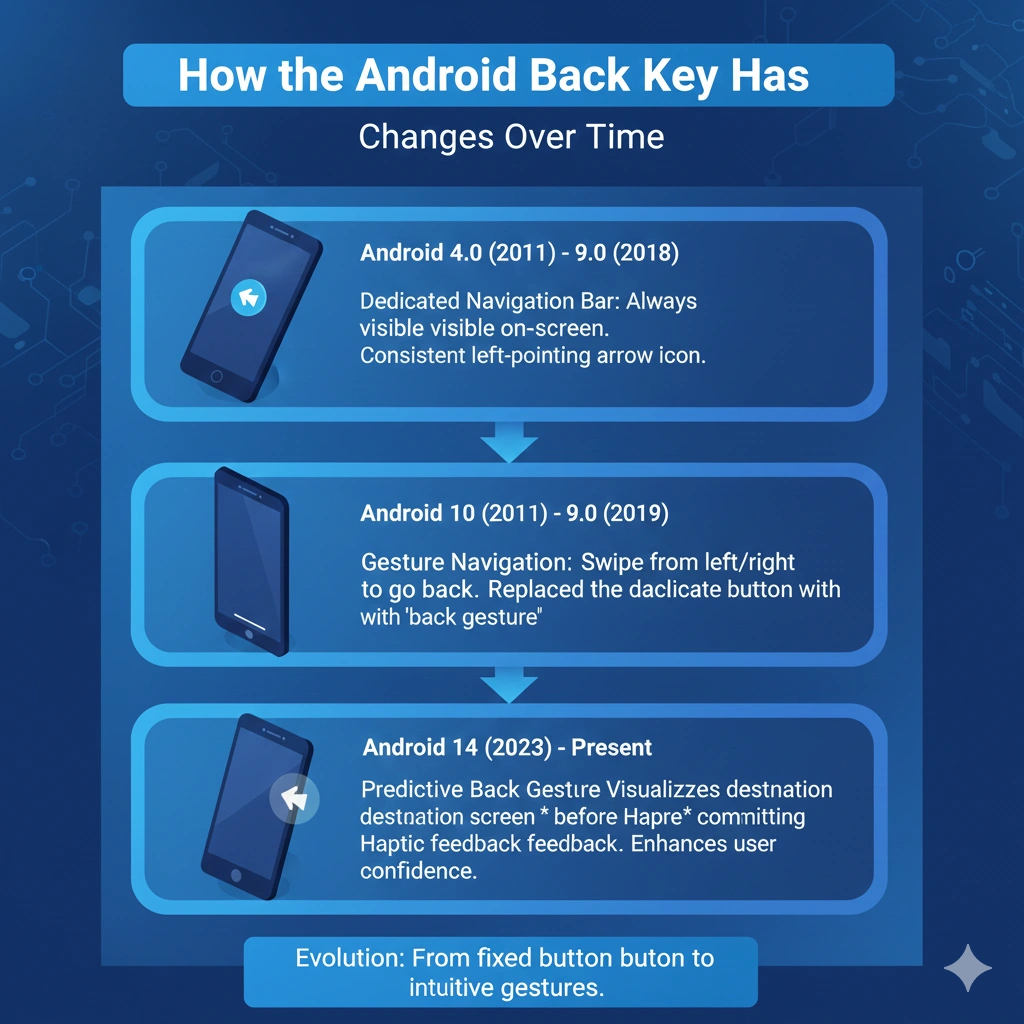
The back button has evolved a ton since Android first came out.
Older phones had actual physical buttons you pressed.
Then touch-sensitive ones right under the screen.
On-screen buttons showed up big around Android 4, with that familiar triangle icon.
Android 9 mixed things up with a thinner bar and a back button that only popped up when needed.
Android 10 ditched visible buttons for edge swipes.
Starting in Android 13, you get those nice preview animations showing where you’re headed.
By Android 15 now in 2025, the previews are smoother, and some earlier gesture glitches are sorted.
This quick table sums up the big shifts I’ve seen:
| Android Version | Navigation Style | Back Feature Highlights |
|---|---|---|
| Early (1.0-3.0) | Physical/capacitive buttons | Hard back button you could feel |
| 4.0-8.0 | 3-button on-screen | Triangle icon always at the bottom |
| 9 (Pie) | 2-button + gestures | Back shows up only in apps that need it |
| 10+ | Full gestures | Swipe from screen edges |
| 13-15 | Gestures + predictive back | Quick peek at the previous screen |
All these changes gave us bigger screens and a cleaner look.
Discover More Articles : Discovering Fappelo The All-in-One Platform Revolutionizing
Using the Android Back Key on Modern Phones
It depends on what navigation your phone uses.
Classic 3-Button Setup
That’s the old reliable—triangle back icon usually on the left (though some Samsungs flipped it).
Just tap it.
Long-pressing used to do extras, but not much anymore system-wide.
Gesture Navigation
This is what most new phones push now.
Swipe in from either left or right edge.
Works from pretty much anywhere along the side.
On Android 14 and 15, you see a little preview slide in as you swipe.
Once I got used to gestures, I found them faster—no hunting for a tiny button.
Switching Your Back Navigation Style
Want to try the other way? Super simple.
Head to Settings > System > Gestures > System navigation.
Pick:
Gesture navigation—no buttons, just swipes.
Or 3-button navigation for the classics.
On Pixels or Samsungs, the menu might be under Display or Gestures, but it’s close.
I’ve flipped back and forth—gestures won me over, but buttons are comfy if you’re coming from older phones.
Tweaking or Remapping Back Behavior
Pure Android keeps things locked down—you can’t easily remap the system back without extras.
If your phone has side buttons, some apps can remap those for back actions.
For gestures or on-screen, you’re mostly stuck with stock unless you dig into advanced stuff.
Missing the button feel? Just switch to 3-button mode.
When the Android Back Key Acts Up
It happens sometimes.
Common fixes I’ve tried:
Gesture missing swipes—bump up sensitivity in the navigation settings.
Button frozen—restart, or toggle modes a couple times.
App-specific weirdness—update the app or clear its cache.
Post-update bugs—Android 15 had a few gesture quirks early on, but updates smoothed them.
Hardware issues are rare these days, but possible on older models.
How Android Back Key Compares to iOS
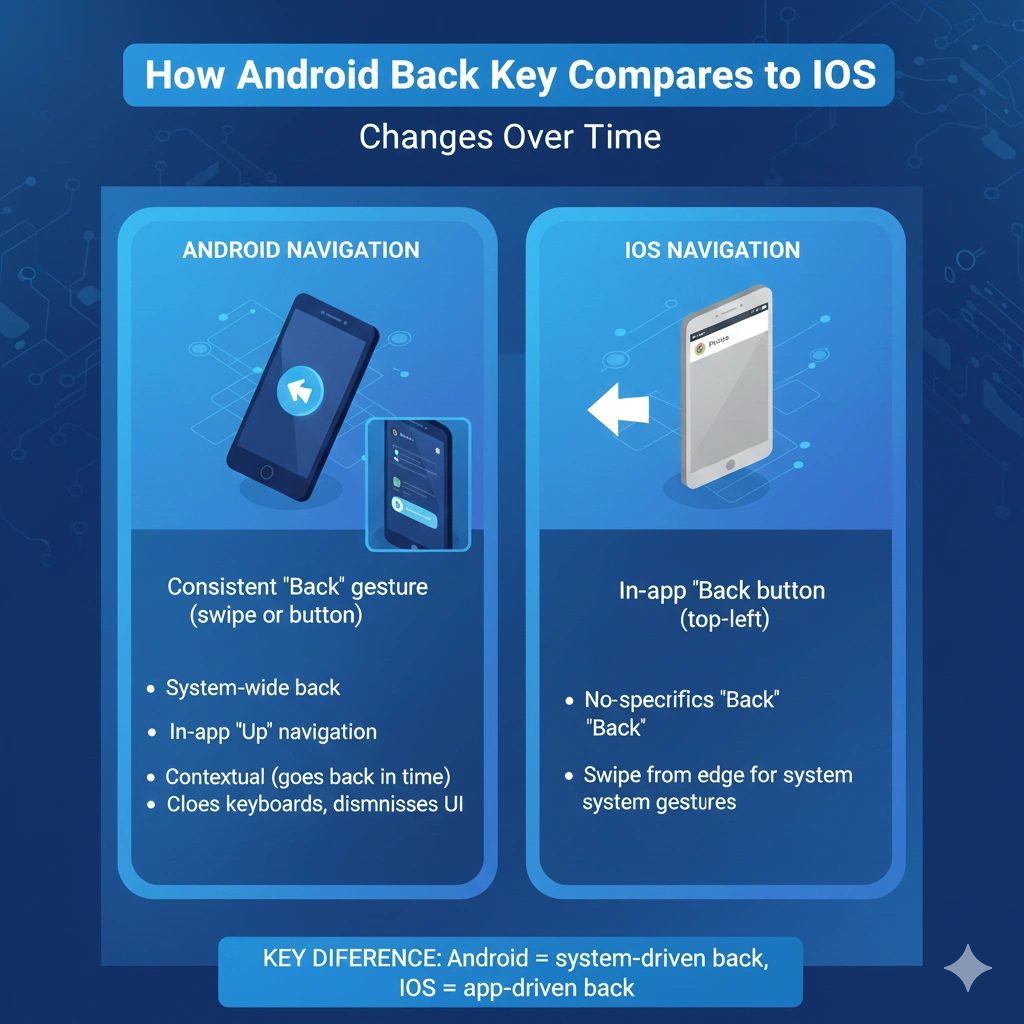
Folks always ask about this.
Android back Key is consistent across the whole system.
iOS leans on in-app arrows or left-edge swipes, but it’s not always the same everywhere.
Android lets either side for gestures; iOS sticks mostly left.
After using both sides a lot, I find Android’s back more reliable for truly undoing your last move.
More Blogs : How to Join a Pear Deck Session with JoinPD A Simple …
Handy Tips for the Back Button
Give gestures a few days if you’re switching—it clicks fast.
Use those previews on newer Android to catch mistakes before committing.
Remember it follows your actual path, even jumping apps.
App back arrows usually play nice with the system one.
Final Thoughts
The Android back Key button—or swipe—has gotten really polished over time and stays a big reason navigation feels intuitive on these phones. Buttons or gestures, pick what fits you best—it can make scrolling through your day that much nicer. Play around in settings if something feels off; you’ll land on what works perfect for you.
Discover More Articles : https://cinebench.org/android-back-key/
Frequently Asked Questions About the Android Back Key
1. Where’s the back button on my Android?
In button mode, triangle at the bottom (often left). Gestures: swipe from either edge.
2. How do I get the old back button back?
Settings > System > Gestures > System navigation > choose 3-button.
3. Why isn’t my back button working?
Restart phone, adjust gesture sensitivity, or switch modes temporarily.
4. Can I change what the back button does?
Not much on stock Android—third-party apps help with side buttons sometimes.
5. Back vs the up arrow—what’s the difference?
Back follows your real history (can leave app). Up keeps you inside the current app.