The white screen of death (often abbreviated as WSOD) is a frustrating issue that leaves your device or website completely blank—usually a stark white display with no error messages or content. It affects computers, smartphones, websites, and more. While alarming, it’s rarely permanent and often fixable with simple troubleshooting.
This comprehensive guide covers the white screen of death across common scenarios, including Windows PCs, WordPress sites, and mobile devices like iPhone and Android. You’ll learn causes, proven fixes, and prevention tips.
What Exactly Is the White Screen of Death?
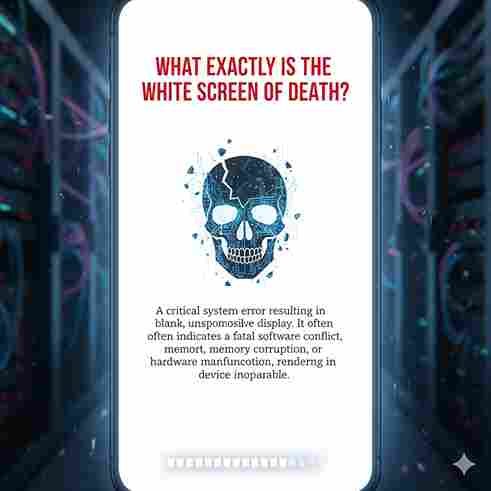
The white screen of death occurs when a system encounters a critical error, halting normal display. Unlike the Windows Blue Screen of Death, it provides no error codes— just a blank white page. It can happen on boot, during use, or after updates.
Common contexts include:
- Windows computers
- WordPress websites
- iPhones and Android phones
- Monitors or laptops
Common Causes of the White Screen of Death
The white screen of death stems from hardware, software, or configuration issues. Here are the top causes:
| Cause Category | Specific Reasons | Affected Devices/Systems |
|---|---|---|
| Software/Plugin Conflicts | Faulty plugins, themes, or incompatible updates | WordPress websites, Windows apps |
| Memory Exhaustion | PHP scripts or processes exceed limits | WordPress, Windows |
| Graphics/Driver Issues | Outdated or corrupt graphics drivers | Windows PCs, laptops |
| Hardware Problems | Loose cables, damaged screens, or failing components | iPhones, monitors, laptops |
| Failed Updates | Interrupted iOS/Windows updates | iPhones, Android phones, Windows |
| External Devices | Faulty peripherals like USB drives or cables | Computers, monitors |
In WordPress, white screen of death affects up to 10-15% of reported errors, often from plugin conflicts.
Discover More Blogs : What Is MyThedaCare? A Simple Guide to ThedaCare’s …
How to Fix the White Screen of Death on Windows Computers
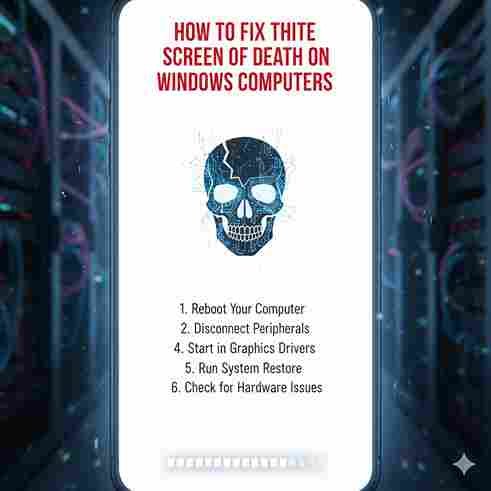
For Windows users, the white screen of death usually appears on boot or during use. Try these fixes in order:
- Force Restart
Hold the power button for 10 seconds to shut down, then restart. This resolves minor glitches. - Update Graphics Drivers
Open Device Manager → Display Adapters → Right-click your GPU → Update driver. - Boot into Safe Mode
Restart and press F8 repeatedly → Select Safe Mode. If it works, a driver or app is the culprit. - Disconnect Peripherals
Unplug all USB devices and external monitors. Reconnect one by one. - Run System File Checker
Open Command Prompt as admin → Typesfc /scannow. - Rollback Recent Updates
Settings → Update & Security → View update history → Uninstall updates.
If nothing works, consider hardware checks like loose display cables.
More Articles : https://cinebench.org/mythedacare/
Fixing the White Screen of Death on WordPress Websites
The WordPress white screen of death is one of the most common site errors, often due to PHP issues.
Step-by-Step Fixes
- Increase PHP Memory Limit
Editwp-config.phpand add:define('WP_MEMORY_LIMIT', '256M'); - Deactivate Plugins
Via FTP, rename the/wp-content/pluginsfolder toplugins-old. Refresh your site. If fixed, rename back and reactivate one by one. - Switch to Default Theme
Rename your active theme folder in/wp-content/themes. - Enable Debugging
Inwp-config.php, add:define('WP_DEBUG', true);define('WP_DEBUG_LOG', true);
Check/wp-content/debug.logfor errors. - Check .htaccess File
Rename.htaccessto.htaccess-oldand create a new one with default WordPress rules. - Reinstall Core Files
Download fresh WordPress files and replace all exceptwp-contentandwp-config.php.
White Screen of Death on iPhone and Android Devices
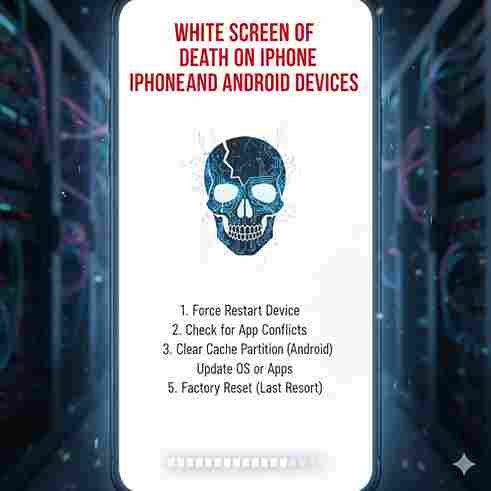
Mobile white screen of death often results from drops, updates, or software glitches.
iPhone Fixes
- Force Restart
Quickly press volume up, volume down, then hold side button until Apple logo appears. - Check Zoom Settings
Settings → Accessibility → Zoom → Turn off (sometimes accidental zoom causes it). - Enter Recovery Mode
Connect to computer → Use iTunes/Finder to restore.
Android Fixes
- Force Restart
Hold power button for 30 seconds. - Boot into Safe Mode
Hold power button → Long-press “Restart” → Enter Safe Mode. - Clear Cache Partition
Boot into recovery mode → Wipe cache partition.
Prevention Tips for the White Screen of Death
- Keep software and drivers updated.
- Use reputable plugins/themes (WordPress).
- Regularly backup your site/device.
- Monitor memory usage on servers.
- Avoid sudden power-offs during updates.
Final Thoughts
The white screen of death feels scary, but most cases resolve quickly with basic troubleshooting. Start simple—restart, update drivers, or deactivate plugins—before panicking. Regular maintenance prevents recurrence. If DIY fixes fail, seek professional help to avoid data loss.
More Articles : https://cinebench.org/intelligent-frame-creation/
FAQs
1. What causes the white screen of death on WordPress?
PHP errors, exhausted memory limits, or plugin/theme conflicts.
2. How do I fix white screen of death on Windows?
Force restart, update graphics drivers, or boot into Safe Mode.
3. Can a white screen of death on iPhone be fixed at home?
Yes—try force restart or recovery mode; hardware damage may need repair.
4. Is the white screen of death permanent?
Rarely; most issues stem from software and are fixable without data loss.
5. How can I prevent white screen of death?
Update regularly, use compatible software, and maintain backups.